How to Remove One Page (or Several) From a PDF on Phone or Computer
You have a PDF with one page too many: a blank back from a double-sided scan, a fax cover sheet, an old revision, or a page with personal details the recipient doesn't need. Removing it takes under a minute on any phone or computer, and you don't need to install anything or upload the file.
The quickest way: Remove pages (any device)
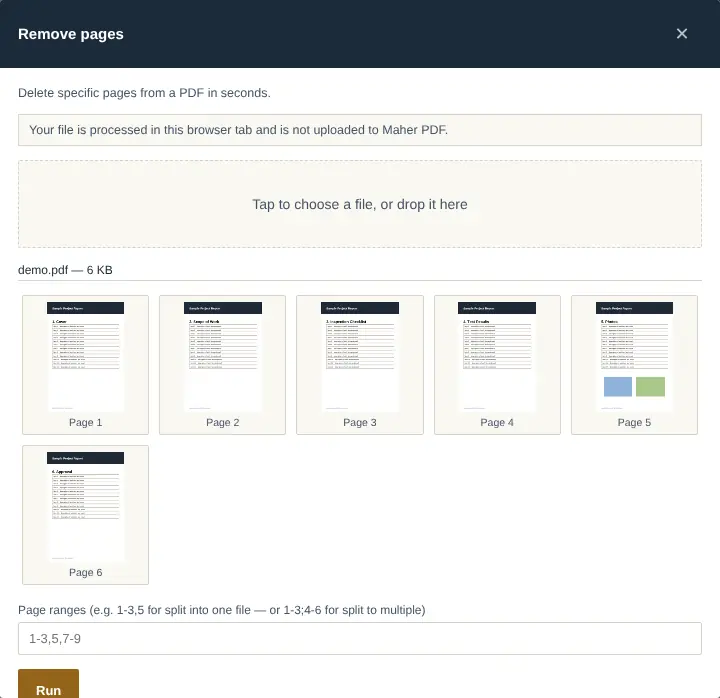
- Open Remove pages from PDF and tap Choose a PDF.
- Thumbnails of every page appear. Tap the page you want to delete; it is highlighted and its number appears in the page box.
- To delete more than one, keep tapping, or type the numbers:
3for one page,2,5,9for several,10-14for a range, or mix them:1,4,10-14. - Tap Run. A new PDF without those pages downloads, and your original file is not changed.
The whole job happens inside your browser, so it works the same on Android, iPhone, Windows and Mac, and a confidential document never leaves your device.
Remove or keep? Pick the shorter list
| Your situation | Use | Why |
|---|---|---|
| Delete 1–3 pages, keep the rest | Remove pages | Mark only what goes |
| Keep 2 pages out of 40 | Extract pages | Mark only what stays |
| Delete some pages and also fix the order | Organize PDF | Delete, drag and rotate on one screen |
| Cut a long file into separate parts | Split PDF | Each part becomes its own file |
Removing blank pages from a scan
Scanning single-sided paper in double-sided mode gives you a blank page after every real one. In the thumbnails they stand out immediately. For a 20-sheet scan the blanks are usually the even pages, so you can type them, for example 2,4,6,8,10 and so on, or just tap them. Check the thumbnails before you run: a page that looks blank at thumbnail size can hold a faint stamp or a signature near the edge.
Other ways, if you prefer built-in apps
iPhone and iPad
Open the PDF in the Files app, show the page thumbnails (swipe from the left edge, or use the sidebar button), touch and hold the page, and choose Delete. This changes the file itself, so make a copy first if you need the original.
Mac
Open the PDF in Preview, choose View › Thumbnails, select the page and press Delete, then File › Save. Again, this overwrites the original unless you duplicate it first.
Windows (and Chrome on any computer)
Windows has no built-in PDF page editor, but you can "print" the pages you want to keep into a new PDF. Open the PDF in Edge or Chrome, press Ctrl+P, choose Save as PDF, and under Pages enter the pages to keep, for example 1-2,4-10. It works, but printing can drop links, bookmarks and fillable form fields, and scanned pages may be re-compressed. A page-removal tool keeps the remaining pages exactly as they were.
Common problems
- "The file is password protected." If it only has an opening password, you need that password. If it opens but won't let you change pages, use Unlock PDF first, with the owner's permission.
- "The PDF is damaged." Run it through Repair PDF, then remove the page from the repaired copy.
- Page numbers printed on the pages are now wrong. Numbers already on the page are part of its content and don't renumber themselves. Remove the pages first, then add fresh numbers to the final file; see how to add page numbers to a PDF.
- The file didn't get smaller. Removing pages drops their content, but if the remaining pages are large scans, the file stays large. Compress PDF afterwards, or read why your PDF is so big.
Removing a page vs hiding information
Deleting a whole page removes everything on it. If you only need to hide one line, such as an account number or a phone number, don't delete the page and don't just draw a black box on top in an editor that keeps the text underneath. Remove that page and replace it with a corrected one, or rebuild the page so the text is genuinely gone. Our PDF security guide explains why covering text is not the same as removing it.
Related
Need to change the order too? See how to rearrange PDF pages. Putting a submission together from several files? Read how to build a PDF submission package.
Official help from the software makers
Related guides
- How to Rearrange or Reorder PDF Pages (Drag and Drop, No App)Move pages, fix a scan that came out in the wrong order, rotate and delete in one pass, on any device.
- How to Merge PDF Files (and Get the Page Order Right)Prepare your files, set the order, fix sideways pages, and keep the result small enough to email.
- Why Is My PDF So Big? A Practical Guide to PDF File SizeWhat makes PDFs large, what you can realistically shrink, and when compressing is the wrong choice.