How to Add or Insert Page Numbers in a PDF (Page 1 of 10)
Page numbers make a long PDF usable: "see page 14" only works when page 14 is the same for everyone. If the document came from several files, a scanner or a program that didn't number the pages, you can add numbers afterwards in about a minute, in the format you want.
Add page numbers step by step
- Open Add page numbers to PDF and tap Choose a PDF.
- Type the format.
{n}becomes the page number and{total}the number of pages. - Choose the position along the bottom: left, centre or right. The thumbnails preview the exact wording on each page.
- Tap Run and download the numbered PDF. Your original is not changed.
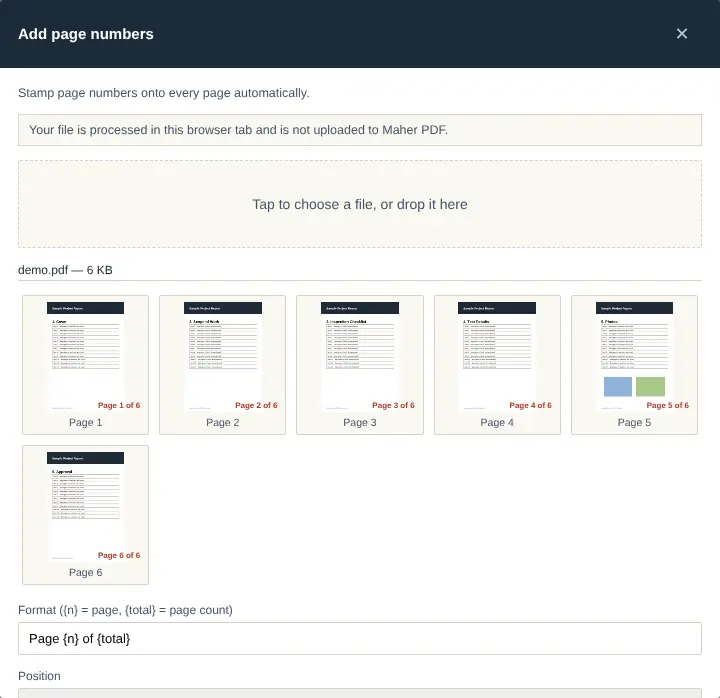
Formats you can use
| Type this | Page 3 of a 20-page file shows | Good for |
|---|---|---|
Page {n} of {total} | Page 3 of 20 | Reports, contracts, anything printed |
{n} | 3 | Books, handouts, minimal look |
{n} / {total} | 3 / 20 | Slides and compact footers |
MS-014 Rev B – Page {n} of {total} | MS-014 Rev B – Page 3 of 20 | Controlled documents: method statements, ITPs, procedures |
Sheet {n} | Sheet 3 | Drawing sets and schedules |
"Page X of Y" is worth the extra characters on anything that gets printed: if a page goes missing, the reader can tell.
How to skip the cover page
The tool numbers every page of the file starting from 1. There are two common conventions, and each takes one extra step:
Cover not numbered, but counted (cover = page 1)
Use Split PDF or Extract pages to separate the cover. Number the full document first, then replace the numbered cover with the clean one: extract pages 2 onwards from the numbered file and merge the clean cover in front. Page 2 still says "Page 2".
Numbering starts after the cover (page after cover = 1)
Separate the cover, number the rest on its own (so it starts at 1 and the total excludes the cover), then merge the clean cover back in front.
Number the final file, not the parts
If the document is built from several files (a cover letter, method statement, drawings, certificates), merge them first and number the merged file once. Numbering each part separately gives you several "Page 1"s. Likewise, finish reordering and removing pages before numbering, because printed numbers don't renumber themselves.
If the number overlaps the footer
Many documents already have footer text: a company address, a document code, a confidentiality line. Look at the thumbnails before saving and switch between left, centre and right until the number sits in a clear spot. Right is usually the safest on letterhead.
Other ways
- Before you make the PDF: if you still have the Word file, add numbers there (Insert › Page Number), with Different First Page to leave the cover blank, then convert Word to PDF. Word's own numbering can also start from any number.
- Adobe Acrobat (paid): has a header and footer feature with more options, such as roman numerals for front matter.
Worked example: a submission package
- Merge the cover letter, method statement, ITP and material certificates with Merge PDF.
- Open the merged file in Add page numbers, type
Page {n} of {total}and choose Right. - Check the thumbnails for pages where the number would sit on existing footer text, change the position if needed, then run.
The full process, including file naming and checks before sending, is in how to build a PDF submission package.
Official help from the software makers
Related guides
- How to Correct a Method Statement PDF Before ResubmissionFix wording, revision numbers and pages in a method statement PDF without rebuilding it in Word.
- How to Sign and Stamp a PDF on Your Phone (With a Clean, Transparent Stamp)Draw a signature, photograph your stamp, remove its background and place both on the PDF.
- How to Highlight and Mark Up a PDF for Review CommentsHighlight exact areas, circle problems and add notes so the author knows exactly what to fix.