How to Build a Clean PDF Submission Package (Tenders, Material Approvals, Handover Files)
A material approval request, a tender submission, a handover dossier: the content may be good, but if the reviewer receives twelve separate files, three sideways pages and no page numbers, the first impression is poor and the review is slower. A clean package is mostly a matter of order and checking. Here is the routine that works.
Part of our Construction and QC documents guides. Start with: PDF document control for contractors.
1. Plan the order before you touch a file
Write the contents list first. A typical material submittal:
- Transmittal / submittal cover sheet
- Compliance statement against the specification
- Manufacturer's technical data sheet
- Test certificates and lab reports
- Previous approvals or references
- Samples register or photographs
Rename your files with number prefixes in that order: 01-transmittal.pdf, 02-compliance.pdf and so on. The order is then obvious when you select them.
2. Turn paper into proper PDFs
Signed covers, stamped certificates and delivery notes often exist only on paper. Photograph them with Scan to PDF, which straightens the page and makes the paper white, so they don't look like snapshots in the middle of a professional document.
3. Merge and review every page
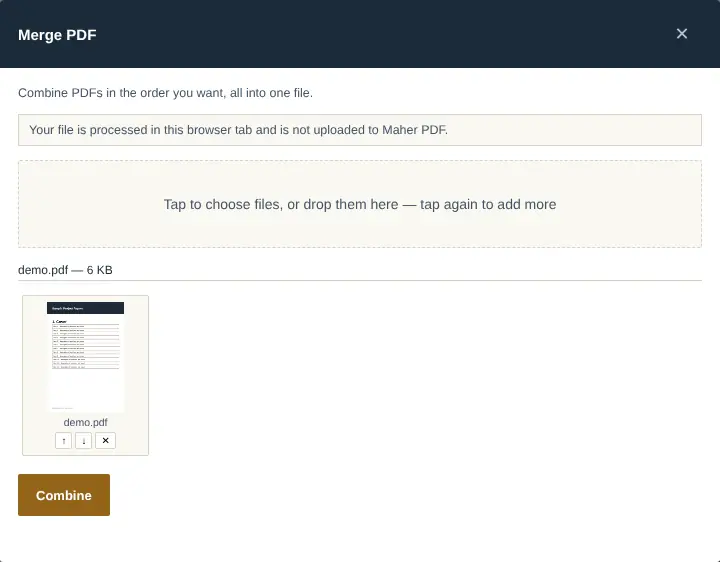
Open Merge PDF, choose all the files and tap Combine. Every page then appears as a thumbnail. This is your one chance to catch problems before the reviewer does:
- Rotate sideways pages (landscape test reports are the usual suspects).
- Delete blank pages, duplicate covers and fax headers.
- Move anything in the wrong section.
4. Number the pages
Once the order is final, add page numbers with Add page numbers, using a format that includes the document reference, for example MAR-023 Rev 0 – Page {n} of {total}. The reviewer can now write "page 14, item 3" in their comments and you will both be looking at the same thing.
5. Check the size against the portal or email limit
Large scanned certificates make packages heavy. Run the final file through Compress PDF with Keep text selectable. If the portal still refuses it, split the appendices into a second file and say so in the transmittal.
6. Name the file properly
Use the project's document numbering if there is one. Otherwise: project code, document type, number, revision, short title. For example P5-HAB-MAR-023_Rev0_Recycled-Road-Base.pdf. Avoid spaces and words like "final".
Final checklist before you press send
- Contents list on the cover matches the actual order.
- No sideways, upside-down or blank pages.
- Every certificate is legible at 100% zoom.
- Page numbers run continuously from the cover.
- Signatures and stamps present where required.
- File size within the limit; file name follows the numbering system.
- You opened the final PDF once, start to finish.
Related guides
- PDF Document Control for Small Contractors: Naming, Revisions and TransmittalsSimple naming, revision and transmittal rules that keep issued PDFs under control on site.
- Working With PDFs on Your Phone Without Installing Apps (and How to Add Maher PDF to Your Home Screen)Everything you can do with PDFs in your phone's browser, and how to install Maher PDF like an app.
- How to Correct a Method Statement PDF Before ResubmissionFix wording, revision numbers and pages in a method statement PDF without rebuilding it in Word.