How to Convert a Measurement Sheet PDF to Excel Without Retyping Quantities
Every month the same job comes round: the progress measurement sheet arrives as a PDF, and someone has to get the quantities into Excel to check them against the BOQ, the previous certificate and the site records. Retyping 200 rows of chainages and lengths takes an afternoon and invites typing errors. Converting the PDF properly takes a minute, if you know what to watch for.
What a measurement sheet looks like to a converter
A typical measurement sheet has a header block with logos and project details, a ruled table of items (serial number, description, chainage from–to, length, width, area or volume, unit), subtotal rows, merged cells for grouped items, and a grand total at the bottom. It is usually exported from Excel to PDF by whoever prepared it.
That is good news. A PDF exported from Excel contains real text and real table lines, so a converter can rebuild the grid exactly: each ruled cell becomes an Excel cell, merged areas become merged cells, and every number is still a number. The only real enemy is a scan of a printed sheet, which has no text at all until it is read with OCR.
Step 1: Check what kind of PDF you have
Open the PDF and try to select a word with your finger or mouse. If you can highlight individual words, it is a digital PDF and the conversion will be exact. If the whole page behaves like one picture, it is a scan; the conversion will use OCR, and you will need to check the figures afterwards.
If the file has many pages and you need only one sheet, pull it out first with Extract pages. Smaller files convert faster and give you a cleaner workbook.
Step 2: Convert
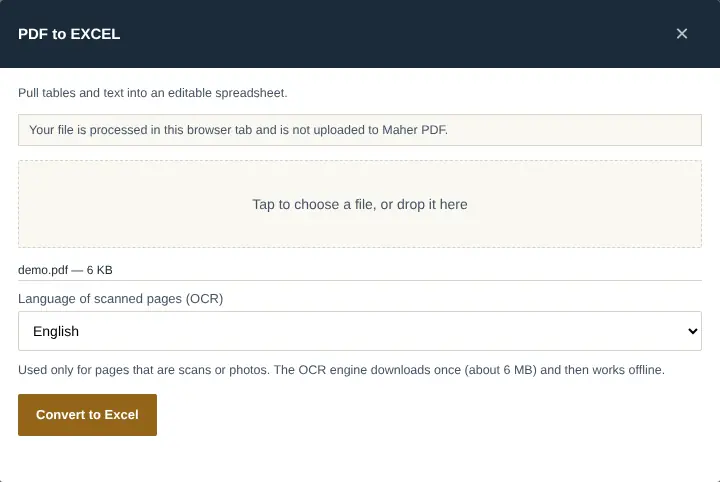
Open PDF to Excel, choose the file and run it. Each PDF page becomes its own worksheet, so a three-sheet measurement backup gives you three tabs. The result card tells you how many tables were found, how many cells were merged, and how many values were stored as real numbers.
Step 3: Know what should be text and what should be a number
This is where most converters go wrong, and where your later formulas fail. Look at a few cells:
| Value in the PDF | Should be | Why |
|---|---|---|
| 131 | Number | A length you will add up |
| 2,806.00 | Number | A total you will check |
| CH 0+424 TO 0+555 | Text | A chainage range, not a calculation |
| 0+635 | Text | Excel would read "0+635" as a formula or 635 |
| 00125 | Text | Leading zeros in IDs and drawing numbers must survive |
| 15/09/2026 | Text | Dates in day/month order are often flipped by Excel |
Maher PDF applies exactly these rules: lengths, areas and totals become numbers, while chainages, IDs with leading zeros and dates are kept as text, letter for letter. Click a total cell: if Excel shows it right-aligned and the status bar shows a Sum when you select a column, the numbers are real.
Step 4: Check the totals in two minutes
Never trust a converted sheet without one check. The fastest one:
- Select the length column of one group. The Sum in Excel's status bar should match the subtotal printed on the sheet (for example 1,359 for six items).
- Do the same for the grand total.
- If they match, the conversion is complete. If not, scroll for a cell that is left-aligned in a numeric column; that one was read as text, usually because of a stray character in the original.
Scanned sheets: what changes
For a scanned measurement sheet, the converter first finds the table lines in the image, erases them so they don't confuse the text recognition, reads each cell, and re-reads any cell it was unsure about on its own. Clean scans at 200–300 dpi give very good results. Faint photocopies, stamps over numbers and handwritten corrections will need checking.
If you only have the paper, photograph it with Scan to PDF first: the page is straightened and cleaned, which improves recognition noticeably compared with a raw phone photo.
Logos and headers
Company logos in the header are placed in the worksheet where they appear on the page, and the title block text (project name, period, reference number) lands in the top rows. That makes the workbook look like the original, so you can forward it without rebuilding the header.
Quick checklist
- Digital PDF or scan? (Try selecting a word.)
- Extract only the pages you need.
- Convert with PDF to Excel; one sheet per page.
- Chainages and IDs are text, quantities are numbers.
- Subtotal and grand total checked with Excel's status-bar Sum.
- For scans: every quantity compared against the paper once.
Related guides
- How to Convert PDF Tables to Excel Without RetypingWhat converts well, how to fix numbers stored as text, and how to verify totals against the original.
- PDF to Excel: Why Numbers Turn Into Text, and How to Fix ItWhy converted numbers won't add up, how to spot text-numbers, and quick fixes.
- PDF to Word: How to Get an Editable Document That Needs Less CleanupWhy conversions are never perfect, what to expect from tables and scans, and how to get a cleaner result.