PDF to Word: Fixing the 7 Most Common Formatting Problems
A PDF is a set of finished pages: it records where every letter goes, not how paragraphs flow. Converting it back to Word means rebuilding paragraphs, tables and headers from those positions. Good converters get very close, but knowing the typical problems, and their fixes, saves a lot of frustration.
1. "It opened as one big picture"
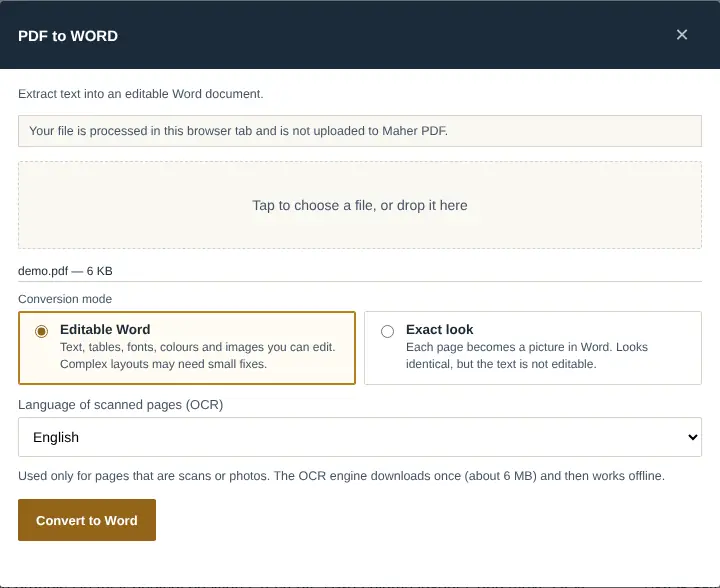
Either you chose an image-based mode, or the PDF is a scan. In Maher PDF's PDF to Word, use Editable mode; scanned pages are read with OCR automatically. Exact look mode deliberately places each page as a picture, for when appearance matters more than editing.
2. Tables came out as loose text
Tables with ruling lines are rebuilt as real Word tables, including merged cells. Tables drawn without any lines (columns aligned with spaces or tabs) are harder; they are kept as aligned text with tab stops. If you need them as a table, select the lines in Word and use Insert → Table → Convert Text to Table.
3. Fonts look different
If the PDF uses a font that isn't installed on your computer, Word substitutes one. Install the font, or select all text and choose a standard font. Calibri, Arial and Times New Roman are safe choices that exist almost everywhere.
4. The header repeats as text on every page
When the same title block appears at the top of every page, the converter turns it into a real Word header, so it repeats automatically and you edit it once. If a header varies slightly between pages, it may stay as body text; delete the duplicates and put one version in the header.
5. Text breaks onto the next page differently
Word recalculates line and page breaks with its own engine, so a paragraph may end one line earlier or later than in the PDF. Adjust spacing or use Keep with next on headings before you finalise. When you export back to PDF with Word to PDF or Word's own Save as PDF, check the page count.
6. A logo or drawing is missing or in the wrong place
Pictures and vector graphics are placed at their original positions behind the text. If one seems missing, check that it isn't hidden behind a table cell with a white fill; select the cell and set no fill. To move a picture, click it and choose Layout Options → In front of text.
7. Two columns became one
Two-column layouts are detected and kept in reading order. If a page mixes one and two columns (a full-width title over two columns of text), the result can need a manual tidy: select the two-column part and use Layout → Columns → Two.
When editing the PDF is simpler
If you only need to change a date, a name or a figure, skip the conversion: Edit PDF changes the text in place, in the original font, and leaves the rest of the layout untouched.
Related guides
- How to Convert PDF Tables to Excel Without RetypingWhat converts well, how to fix numbers stored as text, and how to verify totals against the original.
- How to Convert a Measurement Sheet PDF to Excel Without Retyping QuantitiesGet quantities, chainages and totals from a measurement sheet PDF into Excel you can actually calculate with.
- PDF to Excel: Why Numbers Turn Into Text, and How to Fix ItWhy converted numbers won't add up, how to spot text-numbers, and quick fixes.