How to Correct a Method Statement PDF Before Resubmission
The method statement went to the consultant as a PDF and came back with comments: change the project title, update the revision, correct two figures, remove the old drawing list. Ideally you would edit the Word original, but the Word file is on a colleague's laptop, or it was produced by the main contractor, or it simply no longer matches the issued PDF. Here is how to make the corrections directly and keep the document consistent.
Decide: small corrections or a real revision?
Choose the route by how much has to change:
| Change | Best route |
|---|---|
| A few words, figures, dates, a revision letter | Edit PDF directly |
| Pages to remove, reorder or replace | Organize PDF, Remove pages, Merge PDF |
| Whole paragraphs or sections rewritten | Convert to Word, edit, export to PDF |
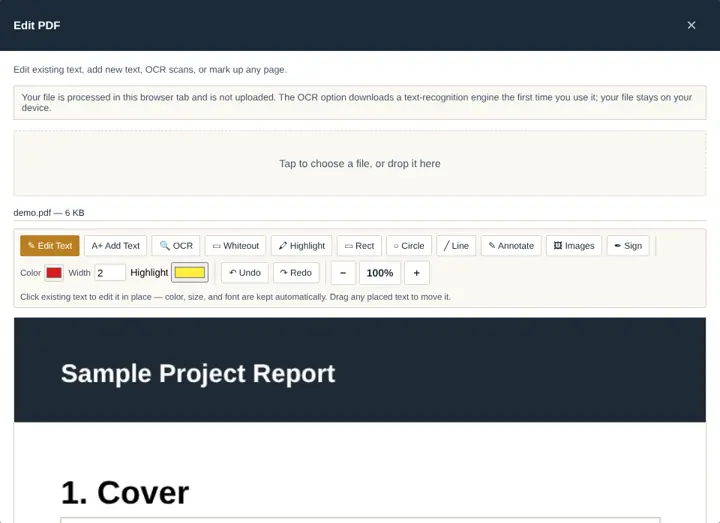
Small corrections with Edit PDF
Open Edit PDF and choose the method statement. Select Edit Text and tap the line you need to change. A panel opens with the text, already set to the line's font, size, colour and weight. The font list shows Original (for example Original (Arial)), meaning the new text will be written in the document's own font, so the correction blends in.
Some practical tips:
- Keep the length similar. The new text replaces the old line in place; it doesn't reflow the paragraph below. If the new wording is much longer, split it over two lines or reduce the size slightly.
- Revision blocks repeat on every page. Change the revision letter on each page's header, or use the next section's approach for a full re-issue.
- Use Highlight for reviewer comments. If you are sending back a marked-up copy, the Highlight tool lets you drag over exactly the text or table row the comment refers to.
Page-level changes
Consultants often ask for sections to be removed or replaced: an outdated equipment list, a drawing register that has been reissued, an attachment that belongs to another package.
- Remove obsolete pages with Remove pages.
- Insert replacements by merging the new pages in with Merge PDF, then drag them into position in the review step.
- Re-number the final document with Add page numbers so "Page 7 of 19" is correct again.
Bigger rewrites: convert to Word
If whole sections change, convert the PDF with PDF to Word in Editable mode. Headers with logos, tables (including the revision table and responsibility matrix) and the body text come back as real Word content, laid out like the PDF. Make the changes in Word, then save as PDF. Check page breaks before issuing; Word reflows text differently from the original program.
Keep the document controllable
Whatever route you take, the reviewer must be able to see what changed and that this is the new revision:
- Update the revision letter or number and the date on the cover and in every page header.
- Add a line to the revision history table describing the change ("Rev B – updated per consultant comments dated …").
- Name the file with the revision:
DK-MS-014_Rev-B.pdf, notmethod statement final final.pdf. - Keep the previous revision unchanged in your records; never overwrite an issued file.
Before you resubmit
- Read every corrected line at full size.
- Search the PDF for the old project title or reference to be sure none survived.
- Check the page count and numbering.
- Compare against the comment sheet item by item and mark each one closed.
Related guides
- How to Add or Insert Page Numbers in a PDF (Page 1 of 10)Add Page 1 of 10, plain numbers or your document reference to every page, and how to skip the cover.
- How to Sign and Stamp a PDF on Your Phone (With a Clean, Transparent Stamp)Draw a signature, photograph your stamp, remove its background and place both on the PDF.
- How to Highlight and Mark Up a PDF for Review CommentsHighlight exact areas, circle problems and add notes so the author knows exactly what to fix.