How to Highlight and Mark Up a PDF for Review Comments
Reviewing a document isn't just finding problems; it is showing the author exactly where they are. A marked-up PDF with clear highlights and short notes gets fixed faster than a long email that says "see section 4, second table, third row". Here's how to mark up a PDF properly with Edit PDF.
Highlight exactly the area you mean
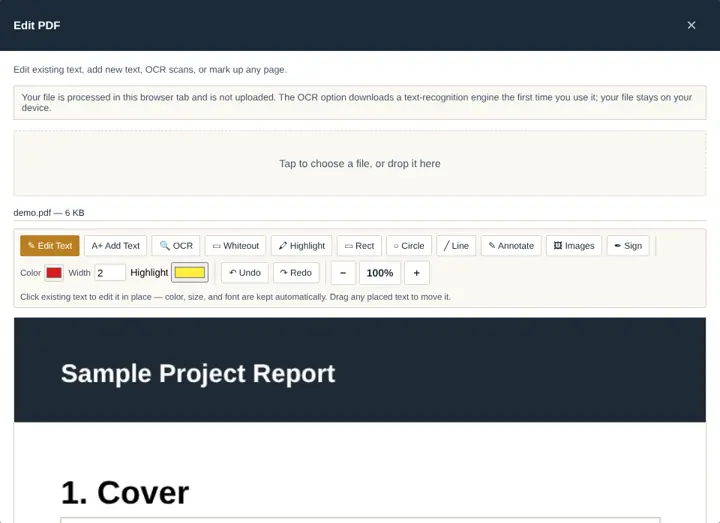
Open Edit PDF, choose the document and tap 🖍 Highlight. Drag a box over anything: a line of text, a single number in a table, a whole table row, or part of a drawing. The highlight covers exactly that rectangle, and the text underneath stays dark and readable, as with a real highlighter pen.
Pick the colour next to Highlight. A simple colour code helps the author:
| Colour | Meaning |
|---|---|
| Yellow | Check or clarify |
| Orange or pink | Must be corrected |
| Green | Confirmed / accepted |
State your colour code once at the top of the first page so everyone reads it the same way.
Add comments as text
Use Add Text to write a short note next to the highlight, in red or blue so it stands out from the document. Keep notes short and specific: "Rev letter should be B", "Total 2,806 ≠ sum of items (2,812)", "Use ADNOC spec ref, not BS".
Circle, box and point
Rect, Circle and Line draw clean shapes around areas on drawings where a highlight would hide detail. Annotate draws freehand, useful for quick arrows or a tick. Set colour and line width in the toolbar.
Zoom for precise work
On a phone, use the + button in the toolbar (or pinch) to zoom in before you highlight small table cells. Every tool stays accurate at any zoom level.
Mark the copy as "Reviewed"
When you're done, save the PDF. To make it obvious that this copy carries comments and isn't for use, add a watermark such as REVIEWED – COMMENTS with Add watermark. Name the file with your initials and the date, for example MS-014_RevA_comments_MH_2026-10-24.pdf.
Good review practice
- Comment on the content, not the person.
- One issue per note; number them if there are many.
- Distinguish "must fix" from "suggestion".
- Keep the original unmarked file; mark up a copy.
Related guides
- How to Add or Insert Page Numbers in a PDF (Page 1 of 10)Add Page 1 of 10, plain numbers or your document reference to every page, and how to skip the cover.
- How to Correct a Method Statement PDF Before ResubmissionFix wording, revision numbers and pages in a method statement PDF without rebuilding it in Word.
- How to Sign and Stamp a PDF on Your Phone (With a Clean, Transparent Stamp)Draw a signature, photograph your stamp, remove its background and place both on the PDF.