How to Rearrange or Reorder PDF Pages (Drag and Drop, No App)
Pages end up in the wrong order all the time: a scanner feeds a stack upside down, a signed page comes back separately, or an appendix needs to move to the end. You can rearrange a PDF's pages in a minute by dragging thumbnails, on a phone or a computer, without installing an app or uploading the file.
Rearrange pages step by step
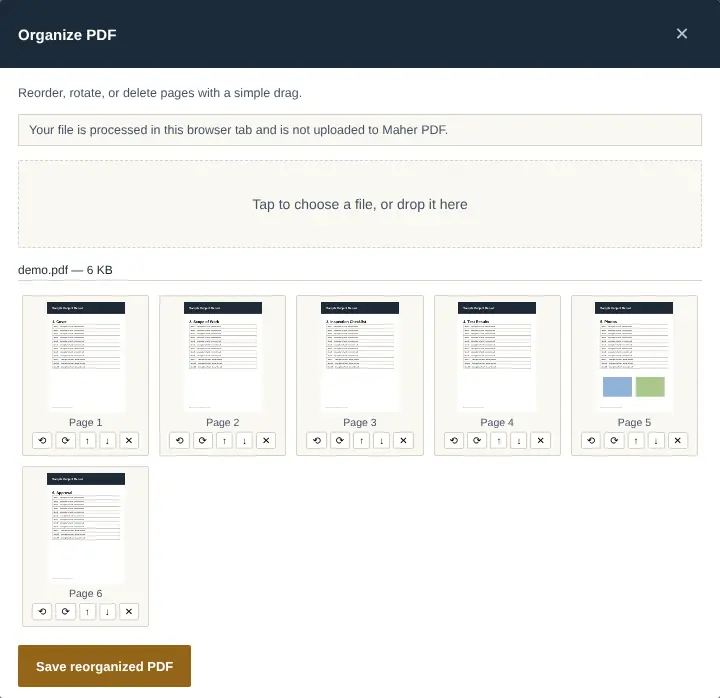
- Open Organize PDF and tap Choose a PDF to organize.
- Every page appears as a thumbnail with its number.
- Drag a page to its new position. On a phone, press and hold the thumbnail for a moment, then drag; on a computer, click and drag.
- While you are there, use the buttons under a page to rotate it or remove it.
- Tap Save reorganized PDF. Nothing changes until you save, so you can try different orders freely.
Typical reorder jobs and the fastest fix
| Problem | Fastest fix |
|---|---|
| One page in the wrong place | Drag that page to its slot in Organize PDF |
| The whole document is in reverse order (scanned last page first) | Drag the last page to the front, then the next, and so on; for long files, split into halves first |
| Odd pages first, then even pages (two passes through a feeder) | Drag each even page between its odd neighbours; rotate the second batch if it came out upside down |
| Pages need to come from different files | Merge PDF, which lets you order files and then review the combined pages |
| All pages are sideways | Rotate PDF turns every page at once |
Worked example: a signed page that came back separately
You sent a 12-page agreement; the client printed only page 11, signed it, and sent back a photo.
- Turn the photo into a clean page with Scan to PDF (the Docs look gives white paper and crisp ink).
- Use Merge PDF to add the signed page to the end of the agreement.
- Open the merged file in Organize PDF, drag the signed page into position 11, and delete the unsigned page 11.
- Save. You now have one complete, correctly ordered 12-page agreement.
Other ways to reorder pages
- Mac Preview: View › Thumbnails, then drag thumbnails up or down and save. It edits the original file.
- iPhone/iPad Files app: recent versions let you rotate, insert and delete pages from the thumbnail menu, but moving pages around is easier in a drag-and-drop tool.
- Windows: there is no built-in way to reorder pages in a PDF; use a browser-based tool like Organize PDF or desktop software such as Acrobat.
Tips for long documents
- Turn your phone to landscape to see more thumbnails at once.
- For a document with hundreds of pages, split it into sections, reorder each section, then merge them back. It is faster on older phones.
- Bookmarks and internal links may not follow pages to their new positions. If your document relies on a clickable table of contents, check it after reordering.
- Renumber at the end: page numbers printed on the pages move with them, so add numbers after the order is final. See how to add page numbers to a PDF.
Related
Only need to take pages out? See how to remove a page from a PDF. Combining several files first? Read how to merge PDF files.
Official help from the software makers
Related guides
- How to Remove One Page (or Several) From a PDF on Phone or ComputerDelete one page, a range or all the blank pages, on any phone or computer, without uploading the file.
- How to Merge PDF Files (and Get the Page Order Right)Prepare your files, set the order, fix sideways pages, and keep the result small enough to email.
- Why Is My PDF So Big? A Practical Guide to PDF File SizeWhat makes PDFs large, what you can realistically shrink, and when compressing is the wrong choice.