How to Send Large Drawings and Reports by Email (Without Losing Detail)
The submittal is ready, the email is written, and the attachment bounces: "Message size exceeds the limit." Drawing sets, scanned inspection records and photo reports routinely reach 30, 60 or 100 MB, while most email systems stop somewhere between 10 and 25 MB. The fix is not always compression, and compressing the wrong way can make a drawing useless.
Know your limits
| Where it is going | Typical limit per message |
|---|---|
| Gmail, Outlook.com | About 20–25 MB |
| Company email (Exchange / Microsoft 365) | Often 10–35 MB, set by IT |
| Client and consultant portals | Often 10–50 MB per file |
| WhatsApp documents | Large, but slow to open on site phones |
Attachments grow by about a third when sent, because email encodes them as text. A 19 MB PDF can count as 25 MB.
Why the file is so big
Text and vector drawings (lines, dimensions, title blocks exported from CAD) are tiny. What makes PDFs heavy is pictures: scanned pages, site photos, aerial images and drawings that were "printed" to PDF as images. Open the file and zoom in on a line: if it stays sharp at 400%, it is vector; if it turns into pixels, it is an image.
Option 1: Compress, choosing the right method
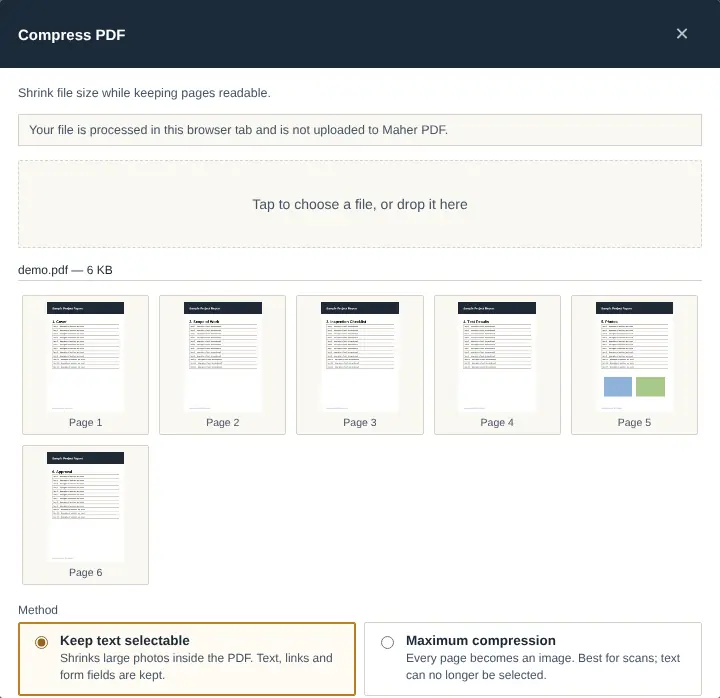
Compress PDF has two methods, and the choice matters:
- Keep text selectable re-compresses only the photos and scans inside the PDF. Vector lines, text and dimensions are untouched, so a CAD drawing stays perfectly sharp. Use this first, always.
- Maximum compression turns every page into an image. It is great for scanned reports and photo logs, but it will blur fine lines on drawings and make text unsearchable. Don't use it on vector drawings.
Maher PDF never gives you a bigger file: if compression doesn't help (an already-optimised drawing set, for example), it tells you instead of downloading a worse copy.
Option 2: Split by discipline or section
Reviewers rarely need everything in one attachment. Split the set into logical parts with Split PDF using ranges such as 1-12;13-30;31-48, and send civil, structural and MEP drawings in separate emails, numbered "1 of 3", "2 of 3" and so on. Each part stays at full quality.
Option 3: Send only what changed
For a revision, send the revised sheets only, extracted with Extract pages, plus a transmittal that lists them. Smaller emails, faster review, and a clearer record of what changed.
Option 4: Share a link
For anything over about 50 MB, upload it to your company's file share (OneDrive, Google Drive, SharePoint, the project's document control system) and email the link. Make sure the link has the right access level and an expiry date if the documents are confidential.
A quick decision guide
- Try Keep text selectable compression.
- Still too big and it is a scanned report? Use Maximum compression.
- Still too big, or it is a vector drawing set? Split it by discipline.
- Over 50 MB in total? Use a link.
Related guides
- How to Remove One Page (or Several) From a PDF on Phone or ComputerDelete one page, a range or all the blank pages, on any phone or computer, without uploading the file.
- How to Rearrange or Reorder PDF Pages (Drag and Drop, No App)Move pages, fix a scan that came out in the wrong order, rotate and delete in one pass, on any device.
- How to Merge PDF Files (and Get the Page Order Right)Prepare your files, set the order, fix sideways pages, and keep the result small enough to email.