Working With PDFs on Your Phone Without Installing Apps (and How to Add Maher PDF to Your Home Screen)
Most PDF apps on the app stores want an account, show ads between steps, or charge a subscription for the one feature you need. Your phone's browser can now do almost everything those apps do, without installing anything and without uploading your files. And if you want an icon on your home screen, you can add one in a few seconds.
Part of our Construction and QC documents guides. Start with: PDF document control for contractors.
What works in the phone browser
| Job | Tool |
|---|---|
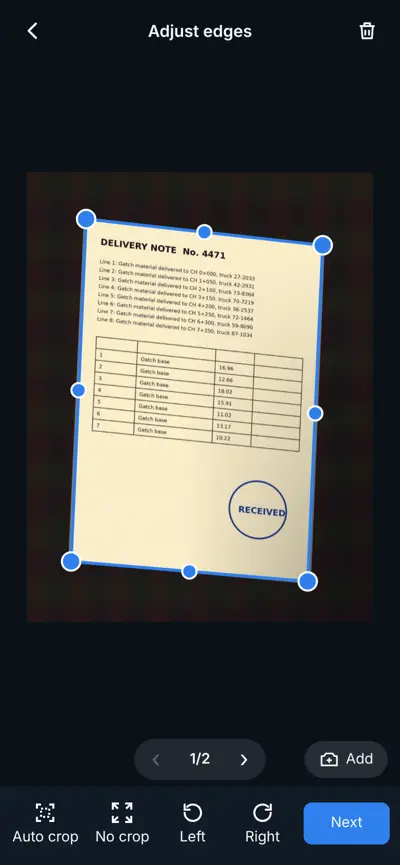
| Photograph paper documents into a PDF | Scan to PDF |
| Sign, stamp, fill in, highlight | Edit PDF |
| Combine attachments into one file | Merge PDF |
| Make a file small enough to send | Compress PDF |
| Get a table into Excel, text into Word | PDF to Excel, PDF to Word |
| Write a quick document | Text to PDF |
Files are processed on the phone itself. That keeps company documents private, and it means tools keep working with a weak site signal once they've loaded.
Install Maher PDF on your home screen
Android (Chrome)
- Open maherpdf.com in Chrome.
- Tap the ⋮ menu at the top right.
- Tap Add to Home screen (or Install app), then Install.
iPhone and iPad (Safari)
- Open maherpdf.com in Safari.
- Tap the Share button (the square with an arrow).
- Scroll down and tap Add to Home Screen, then Add.
Windows and Mac (Chrome or Edge)
- Open maherpdf.com.
- Click the install icon at the right end of the address bar (or menu → Cast, save and share → Install page as app in Chrome; Apps → Install this site as an app in Edge).
- Click Install. Maher PDF opens in its own window and appears in your Start menu or Applications.
How updates reach the installed app
An installed web app updates itself; there is no store update to wait for. Each time you open it with an internet connection, it checks for a newer version. If one is found while you are using it, a bar appears at the bottom: A new version of Maher PDF is available — Update now. Tap it when you're not in the middle of a task. After an update, a short message tells you what's new. You can also tap Check for updates at the bottom of any page.
Offline use
After you've opened a tool once online, it is stored on your device and works without a connection, which is useful on remote sites. The OCR engine for scanned pages also works offline after its first download.
Tips for phones
- Very large files (hundreds of pages, very high-resolution scans) can be slow on older phones; split them or use a computer.
- Downloads go to your phone's Downloads folder (Android) or Files app (iPhone).
- Share results straight from the download to email or WhatsApp.
Related guides
- PDF Document Control for Small Contractors: Naming, Revisions and TransmittalsSimple naming, revision and transmittal rules that keep issued PDFs under control on site.
- How to Build a Clean PDF Submission Package (Tenders, Material Approvals, Handover Files)Cover, order, orientation, numbering and size: a submittal reviewers can read in one pass.
- How to Correct a Method Statement PDF Before ResubmissionFix wording, revision numbers and pages in a method statement PDF without rebuilding it in Word.