Repair a damaged or corrupted PDF
Repair PDF tries to rescue a document that won't open, shows errors, or fails in other tools. Files often get damaged by interrupted downloads, faulty email gateways, or programs that write non-standard PDF structures.
Your files are processed inside this browser tab and are not uploaded to Maher PDF. Please read the Privacy Policy before working with sensitive documents.
The tool tries two approaches. First it reads the file leniently and saves a clean copy, which keeps original quality and selectable text. If that fails, it renders each page it can read at high resolution and builds a new PDF from those images. In that second case the pages look right but text is no longer selectable.
How to use Repair PDF
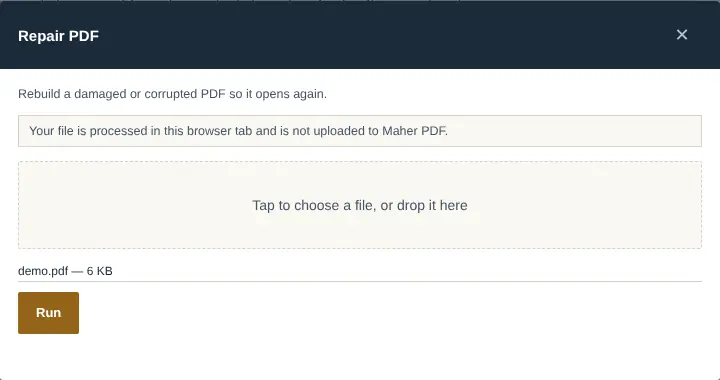
- Tap Choose a PDF to repair and pick the damaged file.
- Tap Run. The status line tells you which repair method worked.
- Open the downloaded
_repaired.pdfand check every page.
Key features
- Lenient structural repair that keeps original quality when possible.
- Automatic visual rebuild as a fallback.
- Clear message telling you which method was used.
Signs a PDF needs repairing
- A viewer says the file is damaged, corrupted, or "could not be opened".
- The file opens in one program but not in another.
- Some pages are blank or show an error.
- Other tools stop with a message that the PDF can't be read.
Worked example: an attachment that won't open
- First download the attachment again. An interrupted download is the most common cause, and a fresh copy is better than any repair.
- If it still fails, open Repair PDF and choose the file.
- Read the message: a clean re-save keeps the original quality and selectable text; a rebuild from page images means text is no longer selectable.
- Open the repaired copy and check the page count against what you expected.
When repair can't help
A file that is cut off (only part of it was downloaded), encrypted with an unknown password, or not really a PDF (an HTML error page saved with a .pdf name) can't be repaired by any tool. In those cases ask the sender for the file again, preferably as a link instead of an email attachment.
Supported files
Input: one PDF. Output: a repaired PDF. Files that are truncated (missing their end) or contain no readable pages can't be recovered by any tool, including this one.
Privacy and security
Repair runs in your browser tab, which matters when the damaged file is something you'd rather not upload.
Common problems
- The repair failed.
- The file may be too badly damaged or may not be a PDF at all (for example, an HTML error page saved with a .pdf name). Try downloading the original again from its source.
- Some pages are missing after repair.
- Pages that couldn't be read are skipped in the visual rebuild. Request a fresh copy of the document if those pages matter.
Tips
- If a PDF only fails in one program, try opening it in a browser first; browsers are often more tolerant.
Frequently asked questions
Can every broken PDF be repaired?
No. Repair can fix structural problems, but it can't recreate data that is missing from the file.
Why is the text in my repaired file not selectable?
The visual rebuild was used, which creates pages from images. That happens only when the structural repair can't read the file.
Is my original file changed?
No. Repair PDF saves a new copy. The original stays as it was.
Why did a repaired file get bigger?
If the file was rebuilt from page images, each page is now a picture, which usually takes more space than the original text. Run it through Compress PDF to bring the size down.
Guides: Merge, organize, compress and protect
This tool is part of Merge, organize, compress and protect. See also merge PDF files.
- How to Remove One Page (or Several) From a PDF on Phone or ComputerDelete one page, a range or all the blank pages, on any phone or computer, without uploading the file.
- How to Rearrange or Reorder PDF Pages (Drag and Drop, No App)Move pages, fix a scan that came out in the wrong order, rotate and delete in one pass, on any device.
- How to Merge PDF Files (and Get the Page Order Right)Prepare your files, set the order, fix sideways pages, and keep the result small enough to email.
- Why Is My PDF So Big? A Practical Guide to PDF File SizeWhat makes PDFs large, what you can realistically shrink, and when compressing is the wrong choice.