How to Convert PowerPoint (PPTX) to PDF Without Losing Layout
A PowerPoint file looks different on every computer, depends on the fonts installed there, and can be edited by anyone who opens it. A PDF looks the same everywhere and opens on any phone, which is why portals, clients and WhatsApp groups prefer it. Here is how to convert a .pptx to PDF on any device, and how to avoid the usual surprises.
Convert PPTX to PDF in your browser
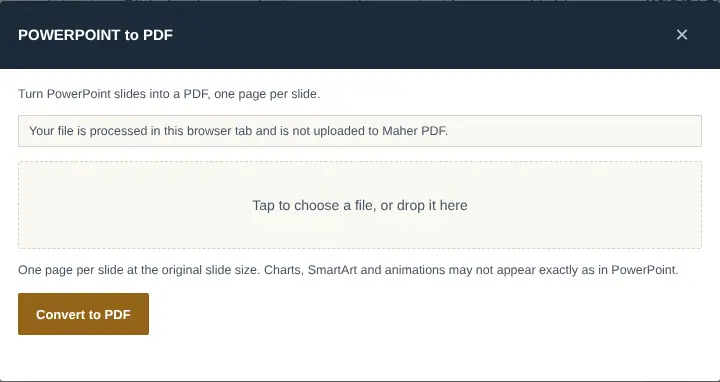
- Open PowerPoint to PDF and tap Choose a PowerPoint file.
- Pick the
.pptxfile. Each slide is rendered as one page at the presentation's own size (16:9 or 4:3). - Read the result card. It warns you if the presentation contains charts, SmartArt or media that a PDF can't carry.
- Tap Download. The PDF has a searchable text layer, so people can find words in it.
This works without PowerPoint installed, on Android, iPhone, Windows and Mac, and the presentation isn't uploaded anywhere.
Which method should you use?
| Situation | Best method |
|---|---|
| No PowerPoint on this device (phone, shared PC) | PowerPoint to PDF in the browser |
| Slides with charts, SmartArt or complex animations frozen as images | PowerPoint's own export: File › Export › Create PDF/XPS (Windows) or File › Export › PDF (Mac) |
| Presentation lives in Google Slides | File › Download › PDF document |
| Keynote on Mac or iPhone | File › Export To › PDF |
Old .ppt file | Open and re-save as .pptx in PowerPoint or Google Slides first |
Keeping fonts and layout
- Use common fonts. Calibri, Arial, Segoe UI and Times New Roman exist almost everywhere. An unusual font that isn't available is replaced by a similar one, which can move line breaks.
- Charts and SmartArt: if a slide's chart must appear exactly, copy the chart in PowerPoint and paste it back as a picture before converting.
- Text overflowing a box in the PDF usually means a substituted font is slightly wider. Shorten the text or reduce the font size by a point.
Handouts and speaker notes
A standard conversion gives one slide per page and leaves out speaker notes. If the notes matter, either copy them onto the slides, or use PowerPoint's own export and choose Notes Pages or Handouts in the export options. To print several slides on one sheet, use the handout option there, or print the PDF with several pages per sheet.
The PDF is too big to send
Presentations are full of photos, and a deck of 40 photo slides can easily reach 50 MB. Run the PDF through Compress PDF, which shrinks the images while keeping text sharp. For decks that are still too big, see how to send large reports by email and our PDF file size guide.
Worked example: sharing a toolbox talk
- Convert the toolbox talk .pptx with PowerPoint to PDF on your phone.
- Flick through the PDF to check every slide, especially any with charts.
- Add the attendance sheet: scan it with Scan to PDF and merge it after the slides.
- Share the single PDF in the team group; it opens instantly on every phone.
Going the other way
Need slides from a PDF? PDF to PowerPoint places each PDF page on a slide so you can present it or add notes. For documents rather than slides, see converting Word to PDF without page-break problems.
Official help from the software makers
Related guides
- Word to PDF: Why Pages Break Differently and How to Prevent ItStop lines jumping pages, lonely headings and blank last pages when you save Word as PDF.
- How to Turn Notes, Messages and Text Files Into a Clean PDFFrom WhatsApp, email or notes app to a tidy PDF with headings and lists, without Word.