Word to PDF: Why Pages Break Differently and How to Prevent It
You convert your CV or report from Word to PDF and the layout shifts: a bullet moves to the next page, a heading sits alone at the bottom, or a blank page appears at the end. The causes are predictable, and most can be fixed in the Word file in a minute.
Why layouts shift
A Word file describes content; the page layout is calculated when the file is opened, using the fonts available on that device. Different fonts, slightly different line heights, or a different paper size, and every line moves a little. Over several pages, "a little" becomes a whole line on the next page.
Cause 1: Missing fonts
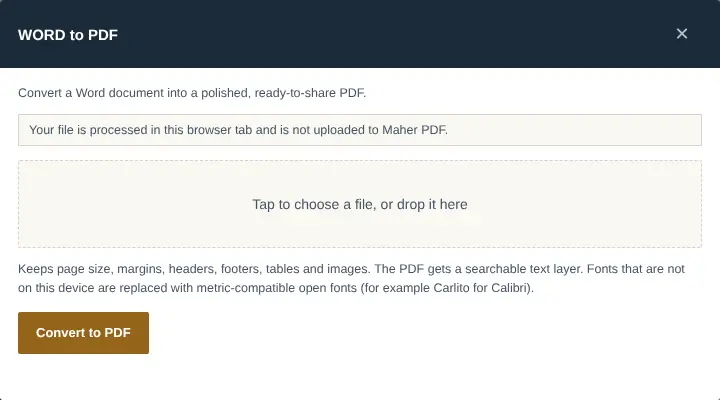
If your document uses a font that isn't on the converting device, a substitute is used with different letter widths. Maher PDF's Word to PDF substitutes metric-compatible fonts for the common Office fonts: Carlito for Calibri, Caladea for Cambria, Arimo for Arial, Tinos for Times New Roman and Cousine for Courier New. They have the same letter widths, so lines break in the same places. Unusual decorative fonts can't be matched exactly; use a standard font for documents you will send.
Cause 2: Paper size
A document set up for US Letter and converted on A4 (or the reverse) changes the number of lines per page. Check Layout → Size in Word and set the size you will print or submit on.
Cause 3: Headings without "Keep with next"
Word's own heading styles keep a heading with the paragraph below it. Text you made bold and larger by hand doesn't. Apply the built-in Heading styles, or select the line and tick Paragraph → Line and Page Breaks → Keep with next. Maher PDF's converter also keeps short bold heading lines with the text that follows them.
Cause 4: Empty paragraphs at the end
A few empty lines after the last paragraph, or an empty bullet, can push onto a new page and create a blank last page. Turn on the ¶ symbol in Word, delete everything after your last line, and convert again. If a blank page still appears in a PDF you received, remove it with Remove pages.
Cause 5: Tables and pictures
A table row that doesn't fit at the bottom of a page moves completely to the next page, leaving a gap. In Word, allow rows to break across pages (Table Properties → Row → Allow row to break across pages), or shorten the content above. Large pictures behave the same way; reduce their size slightly.
CVs: a special case
CVs are short, dense and full of tables, tab stops and right-aligned dates, which makes them sensitive to all of the above. Before sending a CV as PDF:
- Use Calibri or Arial, sizes 10–11.
- Remove trailing empty lines and empty bullets.
- Check that each job title stays with its bullets.
- Open the PDF and check both pages before attaching it.
Official help from the software makers
Related guides
- How to Convert PowerPoint (PPTX) to PDF Without Losing LayoutPPTX to PDF on any device: keeping fonts and layout, handouts with notes, and fixing missing charts or big files.
- How to Turn Notes, Messages and Text Files Into a Clean PDFFrom WhatsApp, email or notes app to a tidy PDF with headings and lists, without Word.