How to Scan Receipts for Expense Claims on Your Phone
Fuel receipts, small material purchases, meals on site visits, taxi slips: by the end of the month there is a pocketful, half of them faded thermal paper. Finance wants them as one readable PDF in the same order as the claim form. Your phone can produce that in ten minutes.
Before you start
- Sort the receipts in the same order as the lines on your claim form, usually by date.
- Flatten them. Curled thermal receipts cast shadows; press them under a book for a few minutes.
- Find a dark surface, such as a desk or a dark folder. White receipts on a dark background are detected best.
- Use daylight or a bright, even room light. Avoid the phone's flash; it makes a white glare on glossy paper.
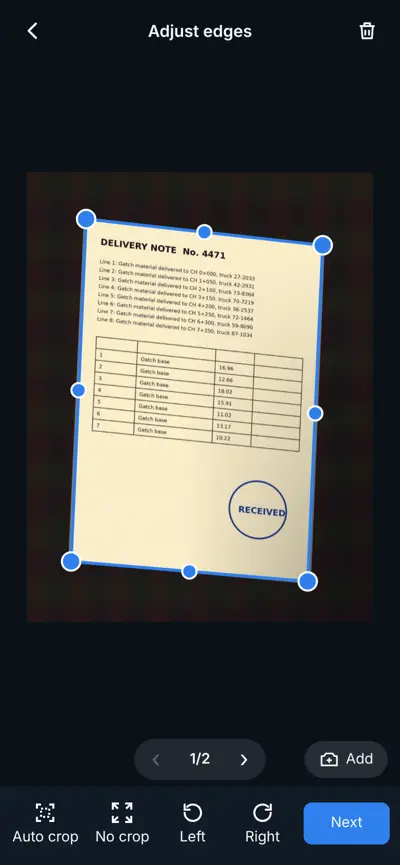
Scanning
- Open Scan to PDF, tap Open scanner and choose Batch.
- Photograph the first receipt from directly above, filling most of the frame. The edges are found automatically.
- For long receipts, check that the total at the bottom is inside the blue outline; drag a corner or side if not.
- Keep the Auto look: it turns grey thermal paper white and makes faded print darker.
- Photograph the next receipt the same way; tap the page stack when you have them all, check the crops and tap Done.
Faded thermal receipts
Thermal paper fades with heat and time. If the amount is hard to read, try the Black & white look, which makes faint print darker. Scan receipts soon after you get them, and keep the paper originals until the claim is paid.
Several small receipts per page
To save pages, you can lay three or four small receipts on the dark surface together and photograph them in one go. Tap Whole photo so all of them are kept, instead of only the largest.
Order, check and size
Use ↑ ↓ to match the claim form's order, and zoom into each thumbnail to confirm the amount and date are legible. Choose Small file quality if you have many receipts; finance systems often limit uploads to a few megabytes. If you scanned in two sessions, join the PDFs with Merge PDF, and shrink the result with Compress PDF if needed.
Name it so finance can find it
Expenses_2026-10_Your-Name.pdf is better than scan.pdf. One file per month, receipts in claim order, every amount readable: that is a claim that gets approved without questions.
Related guides
- How to Scan Documents to PDF with Your Phone (No App Needed)Lighting, angle, and background tips for clean scans, plus combining pages and keeping file size down.
- How to Make a Scanned PDF Searchable and Editable (OCR Explained)Why scans behave like pictures, how OCR turns them into text, and how to get accurate results.
- Arabic and English OCR: How to Get Better Results From Scanned DocumentsLanguage choice, scan quality and bilingual layouts: getting usable text from Arabic and English scans.