Arabic and English OCR: How to Get Better Results From Scanned Documents
In the UAE and across the Gulf, many documents are bilingual: Arabic and English side by side on letters, permits, trade licences, invoices, Emirates ID copies and government forms. OCR (text recognition) handles both languages well when it is set up for them, and badly when it isn't. These tips come from converting exactly this kind of paperwork into editable Word and Excel files.
Choose the language deliberately
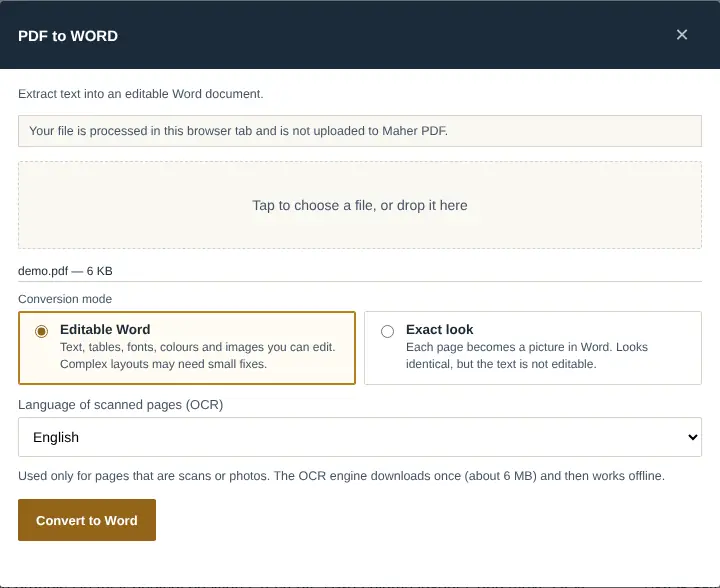
When you convert a scanned PDF with PDF to Word or PDF to Excel, you can pick the OCR language:
| Document | Choose |
|---|---|
| English only (reports, drawings, test certificates) | English |
| Arabic only (government letters, some permits) | Arabic |
| Both languages on the same page | English + Arabic |
English + Arabic is slower and slightly less accurate on purely English text, so don't use it by default. But on a bilingual page, a single-language engine turns the other language into nonsense. The Arabic language data downloads once (about 1.7 MB) the first time you use it, then works offline like the English engine.
Arabic needs a better scan than English
Arabic letters change shape depending on their position in a word, and the dots above and below letters carry meaning: ب ت ث ن ي differ only by their dots. A dot lost to a blurry photo or heavy compression changes the letter. For Arabic:
- Photograph or scan at a higher resolution: hold the phone closer so the page fills the frame, or scan at 300 dpi rather than 200.
- Use daylight or even room light and avoid your own shadow; a shadow across a line makes dots disappear.
- In Scan to PDF, choose the Auto, No shadow or Gray look. Docs is fine for clean printed letters, but avoid B&W for Arabic: hard black-and-white can merge dots into the letters or drop them altogether.
- Avoid sending the photo through a chat app first; most of them compress images and eat fine detail.
The Arabic OCR mistakes to look for
Even a good result has typical slips. Knowing them makes checking much faster:
| Often confused | Why | Where it matters |
|---|---|---|
| ة and ه at the end of a word | The two dots of taa marbuta are small | Company and person names, searching |
| ى and ي | The two dots under yaa are lost | Names (e.g. Mustafa, Ali), addresses |
| أ / إ / آ and ا | The hamza or madda mark is tiny | Names, official titles |
| ب ت ث ن ي (and ج ح خ) | Same shape, different dots | Any word; check amounts written in words |
| Eastern digits ٤ ٥ ٦ and Persian forms ۴ ۵ ۶ | Similar shapes in different fonts | IDs, amounts, dates |
A quick way to catch them: read the names and numbers against the original scan, not the whole text. Ordinary words are usually right; names and numbers are where errors hurt.
Numbers in Arabic documents
Arabic documents may use Western digits (0–9) or Eastern Arabic digits (٠–٩). Both are recognised, but check them carefully, especially in amounts, dates and ID numbers. For calculations in Excel, Western digits are easier: in Excel use Find & Replace ten times (٠ → 0, ١ → 1 … ٩ → 9), then the cells become real numbers. If numbers still won't add up, see why converted numbers turn into text and how to fix it.
Mixed layouts: two columns, two languages
Bilingual forms often put English on the left and Arabic on the right. The converter detects the columns and keeps each language's lines together, so English reads left to right and Arabic right to left. Tables with both languages in neighbouring cells are rebuilt cell by cell.
If an Arabic paragraph in Word looks left-aligned or its full stop appears at the wrong end, select it and click Right-to-Left Text Direction in Home › Paragraph. That sets the paragraph direction without changing the words.
Stamps, signatures and logos
Official stamps are often round and bilingual, placed over printed text. OCR may read a few stamp letters as noise. The converter discards low-confidence fragments around logos and stamps, but if a stamp covers part of a sentence, that sentence needs checking against the original.
Worked example: a bilingual trade licence to Word
- Photograph the licence flat, in daylight, filling the frame, with Scan to PDF and the Auto look.
- Open the PDF in PDF to Word, choose English + Arabic, and convert.
- In Word, check the licence number, activity names, partner names and dates against the original, using the table of common mistakes above.
- Fix direction on any Arabic paragraph that looks wrong, then save.
What to check afterwards
- Names: transliteration of names is often inconsistent even in the original; check against an ID copy.
- Numbers: trade licence numbers, Emirates ID numbers, amounts and dates.
- Any line the result card flags as low confidence.
For a small correction on the scanned page itself, open Edit PDF, tap OCR, then edit the recognised word in place. To understand how OCR turns a picture of text into real text in the first place, read how to make a scanned PDF searchable.
Related guides
- How to Scan Documents to PDF with Your Phone (No App Needed)Lighting, angle, and background tips for clean scans, plus combining pages and keeping file size down.
- How to Scan Receipts for Expense Claims on Your PhoneOne clean, readable PDF of all your receipts for the monthly expense claim.
- How to Make a Scanned PDF Searchable and Editable (OCR Explained)Why scans behave like pictures, how OCR turns them into text, and how to get accurate results.